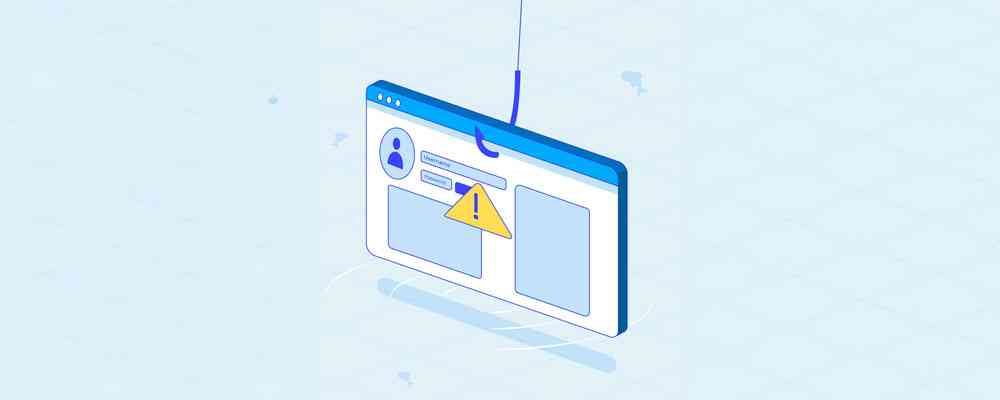
Phishing emails are the most common cyber threat facing small businesses today. These deceptive messages trick employees into revealing passwords, clicking malicious links, or transferring money to criminals. According to the FBI’s Internet Crime Complaint Center, business email compromise scams alone caused over $2.9 billion in losses in recent years.
The good news? Most phishing emails share common warning signs. When you know the red flags of a phishing email, you can protect yourself and your business from costly attacks. This guide shows you exactly what to look for and how to respond when suspicious emails land in your inbox.
Why Small Businesses Are Prime Targets for Phishing Attacks
Cybercriminals specifically target small businesses because they often lack dedicated security teams and comprehensive email filtering. Employees may not receive regular security training, making them more likely to fall for convincing phishing attempts.
Small business owners and their teams handle sensitive information daily—customer data, financial records, login credentials, and payment processing. A single successful phishing attack can compromise all of this information, leading to data breaches, financial losses, and damaged reputation.
Understanding phishing email red flags is your first line of defense. When every employee can spot suspicious messages, your entire organization becomes more secure.
10 Red Flags of a Phishing Email Every Business Owner Should Know
These warning signs appear in most phishing attempts. Learning to recognize them helps you identify threats before they cause damage.
1. Generic Greetings or Impersonal Language
Legitimate business emails typically address you by name. Phishing emails often use generic greetings like “Dear Customer,” “Dear Member,” or “Hello User” because scammers send thousands of identical messages.
Red Flag Example: “Dear Valued Customer” instead of “Dear Sarah” or “Hi John”
2. Suspicious or Mismatched Sender Email Addresses
The sender’s email address may look similar to a legitimate company but contain subtle differences. Look carefully at the domain name after the @ symbol.
Red Flag Examples:
- micr0soft.com (zero instead of ‘o’)
- paypa1.com (number 1 instead of ‘l’)
- su*****@**************es.net (wrong domain entirely)
- jo*******@***il.com claiming to be from your bank
3. Urgent Language and Pressure Tactics
Phishing emails create artificial urgency to bypass your normal caution. They pressure you to act immediately without thinking critically about the request.
Red Flag Phrases:
- “Your account will be closed within 24 hours”
- “Immediate action required”
- “Verify your account now or lose access”
- “Urgent security alert”
- “You must respond today”
4. Requests for Sensitive Information
Legitimate companies never ask for passwords, Social Security numbers, credit card details, or account credentials via email. This is one of the clearest phishing email red flags.
Never provide via email:
- Passwords or PINs
- Social Security numbers
- Credit card numbers or CVV codes
- Bank account information
- Two-factor authentication codes
5. Suspicious Links and URLs
Hover your mouse over any link before clicking (don’t click—just hover). The actual destination URL appears at the bottom of your browser or in a tooltip. If it doesn’t match the claimed destination, it’s a phishing attempt.
Red Flags:
- Links that don’t match the visible text
- URLs with misspellings or extra characters
- Shortened URLs (bit.ly, tinyurl) from unknown senders
- Links using IP addresses instead of domain names
6. Unexpected Attachments
Phishing emails often contain malicious attachments designed to install malware when opened. Be especially wary of attachments you weren’t expecting, even if they appear to come from known contacts.
High-risk file types:
- .exe (executable programs)
- .zip or .rar (compressed files that may hide malware)
- .scr (screensaver files)
- Microsoft Office files with macros enabled
7. Poor Grammar and Spelling Errors
While not all phishing emails contain obvious errors, many do. Professional companies proofread their communications carefully. Multiple spelling mistakes, grammatical errors, or awkward phrasing suggest a phishing attempt.
Watch for:
- Obvious spelling mistakes in company names
- Grammatical errors and awkward sentence structure
- Unusual word choices or non-native phrasing
- Random capitalization or punctuation
8. Too-Good-to-Be-True Offers
Scammers use enticing offers to trick victims into clicking links or providing information. If an offer seems unrealistically generous, it probably is.
Common phishing lures:
- “You’ve won a prize” (when you didn’t enter a contest)
- Unexpected refunds or rebates
- Free gifts requiring only your personal information
- Investment opportunities with guaranteed high returns
9. Mismatched or Unprofessional Design
Compare the email’s appearance to previous legitimate emails from that company. Phishing attempts often use outdated logos, incorrect colors, poor formatting, or pixelated images.
Design red flags:
- Low-quality or distorted company logos
- Inconsistent fonts or colors
- Broken formatting or layout issues
- Missing standard footer information
10. Unexpected Payment or Invoice Requests
One of the most dangerous phishing tactics involves fake invoices or payment requests. These emails claim you owe money or need to update payment information for services you use.
Be suspicious of:
- Invoices for services you don’t use
- Unexpected payment amount changes
- Requests to update payment methods via email link
- Bills from vendors you don’t recognize
Common Phishing Email Scams to Watch For in 2025
Understanding current phishing tactics helps you recognize threats. These scams frequently target small businesses and demonstrate multiple red flags discussed above.
Business Email Compromise (CEO Fraud)
Scammers impersonate company executives or business owners, typically requesting urgent wire transfers or sensitive employee information. These emails often display several red flags: urgent language, unusual requests, and pressure to bypass normal procedures.
Microsoft 365 and Google Workspace Phishing
Fake security alerts claim your email account needs verification or will be suspended. These messages contain links to convincing replica login pages designed to steal your credentials. The Cybersecurity and Infrastructure Security Agency warns that these attacks have increased significantly.
Invoice and Payment Scams
Criminals send fake invoices or intercept real vendor communications to redirect payments to fraudulent accounts. Red flags include unexpected invoice amounts, new payment instructions, or requests to update banking details.
Payroll Redirect Fraud
Scammers impersonate employees requesting changes to direct deposit information. HR departments receive emails that appear to come from staff members, asking to redirect paychecks to different bank accounts.
Vendor Account Compromise
Attackers gain access to a legitimate vendor’s email account and send invoices or payment requests to their clients. These are particularly dangerous because they come from real, trusted email addresses—though the content contains red flags like new payment methods or unusual urgency.
How to Verify if an Email Is Legitimate
When you spot potential red flags of a phishing email, take these verification steps before responding or clicking any links:
Contact the sender directly: Use phone numbers or email addresses you already have on file—not contact information provided in the suspicious email. Call the person or company to confirm they sent the message.
Examine the full email header: Email headers show the true origin of messages. Most email clients let you view full headers to see if the message actually came from the claimed sender’s mail servers.
Check the sender’s domain carefully: Look at the exact domain name after the @ symbol. Scammers use lookalike domains that differ by one character or use different top-level domains (.net instead of .com).
Hover without clicking: Before clicking any link, hover your mouse over it to preview the destination URL. If it doesn’t match what you expect, don’t click.
Use official websites directly: Instead of clicking email links, go directly to the company’s official website by typing the URL into your browser. Log into your account there to check for any legitimate alerts or messages.
Trust your instincts: If something feels wrong about an email, it probably is. When in doubt, verify through another communication channel before taking any action.
What to Do If You Receive a Phishing Email
Recognizing phishing email red flags is only the first step. Taking proper action protects both you and your organization.
Don’t click any links or open attachments: Even if you’re just curious, don’t interact with suspicious emails. Clicking a link can install malware or confirm your email address is active, leading to more attacks.
Don’t reply to the sender: Responding confirms your email address is monitored and may invite further targeting.
Report the phishing attempt: Most email providers have reporting mechanisms. In Outlook or Gmail, use the “Report Phishing” or “Report Spam” button to help improve filtering.
Alert your IT team or provider: If you’re using managed IT services, report suspicious emails immediately so they can implement additional protections.
Warn your colleagues: If a phishing email targets your organization, others likely received similar messages. Alert your team to watch for the same red flags.
Delete the email: After reporting it, delete the phishing email from your inbox and deleted items folder to prevent accidental interaction later.
What Happens If You Click on a Phishing Link?
Many people worry about what happens after accidentally clicking a suspicious link. The risk depends on what you did next.
If you only clicked the link: Simply clicking a link in a phishing email may not cause immediate harm, especially if you didn’t provide any information. However, the website you visited may attempt to install malware or track your IP address.
If you entered credentials or information: This is more serious. Change your passwords immediately, starting with the account you entered information for. Enable two-factor authentication if available.
Immediate steps to take:
- Disconnect from the internet if you suspect malware installation
- Run a full antivirus and anti-malware scan
- Change passwords for any accounts where you entered credentials
- Monitor your accounts for suspicious activity
- Contact your IT support provider immediately
- If financial information was compromised, contact your bank
The faster you respond, the better. Don’t delay out of embarrassment—IT professionals understand that sophisticated phishing attempts can fool anyone.
How to Protect Your Business from Phishing Attacks
Knowing the red flags of a phishing email helps, but comprehensive protection requires multiple layers of defense.
Implement Technical Controls
Modern email security solutions filter phishing attempts before they reach employee inboxes. Features like SPF, DKIM, and DMARC authentication help verify sender legitimacy. Advanced threat protection scans links and attachments for malicious content.
Enable Multi-Factor Authentication
Even if someone steals credentials through phishing, multi-factor authentication prevents unauthorized access. This extra security layer requires a second verification method beyond just a password.
Conduct Regular Security Training
Employees are your strongest defense when properly trained. Regular training sessions teach staff to recognize phishing email red flags and respond appropriately. Include simulated phishing tests to reinforce learning.
Establish Verification Procedures
Create clear policies for sensitive actions. Require verbal confirmation for wire transfers, payment changes, or sensitive data requests—especially when requests come via email.
Keep Systems Updated
Regular software updates patch security vulnerabilities that phishing attacks might exploit. Ensure operating systems, email clients, browsers, and security software stay current.
Use Email Filtering and Anti-Phishing Tools
Professional-grade email security solutions identify and quarantine suspicious messages based on sophisticated analysis. These tools learn from emerging threats and adapt protections accordingly.
How Jordan Tech Protects Businesses from Phishing Attacks
Recognizing red flags of a phishing email is essential, but comprehensive protection requires expert implementation of security measures. Jordan Tech provides complete email security solutions designed specifically for small businesses.
With over 20 years protecting Northwest Indiana businesses, we understand the evolving phishing threat landscape. Our comprehensive email security services include advanced filtering that blocks phishing attempts before they reach your team, multi-layered protection that scans links and attachments in real-time, and regular security awareness training to help employees recognize and report threats.
We implement cybersecurity controls that protect your entire organization, not just individual inboxes. Our Microsoft 365 security configuration ensures your email environment has proper authentication and advanced threat protection enabled. With comprehensive IT support, we monitor for suspicious activity and respond immediately to potential threats.
Don’t wait until a phishing attack costs your business thousands of dollars or compromises sensitive data. Contact us today and learn how we can protect your organization from email threats.
About Jordan Tech: Jordan Tech is a managed IT services provider specializing in cybersecurity and email security for small businesses in Northwest Indiana. We help organizations implement comprehensive protection against phishing, ransomware, and other cyber threats. This article is for informational purposes only.
Last Updated: November 2025